
By using a Database Structure (DBS) file and generating a SQL script, you can apply changes directly in SQL Server, reducing restructure time from hours to minutes on large databases.
This approach is intended for Impact Administrators with direct access to SQL Server Management Studio (SSMS).
Warning: This is an advanced, administrator-only procedure. Always take a full database backup before making any structural changes.
Prerequisites
- Impact Administrator access
- Direct access to the Impact database in SQL Server Management Studio (SSMS)
- Permission to run SQL scripts against the Impact database
- A full database backup taken immediately before starting
When to Use This Method
Use this technique when:
- You need to add one or more fields to an existing table or change an existing field's definition
- The Impact database table(s) contain a large amount of data
- A standard Impact restructure would take an excessive amount of time
Steps
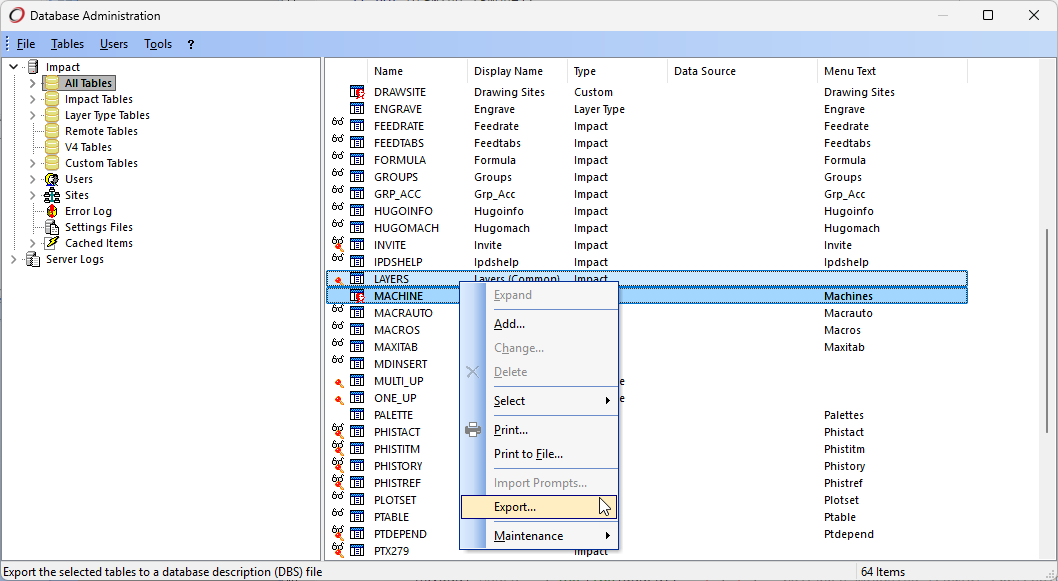
1. Export the Table Definition to a DBS File
- Open Impact and log in as ADMIN.
- Navigate to Database > Administration.
- Locate the table you want to modify.
- Right-click the table and select Export.
- Save the exported .dbs file to a known location.
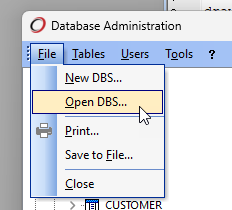
2. Open the DBS File in Impact
- In Impact, go to File > Open DBS.
- Select the DBS file you just exported.
- Impact opens the database structure in a temporary, editable state.
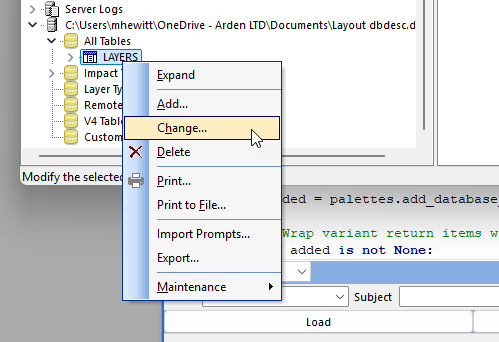
3. Modify the Table Structure
- Within the opened DBS file, make the required changes to the table.
- Ensure:
- Field names are correct
- Data types match the intended use
- Nullability and defaults are appropriate
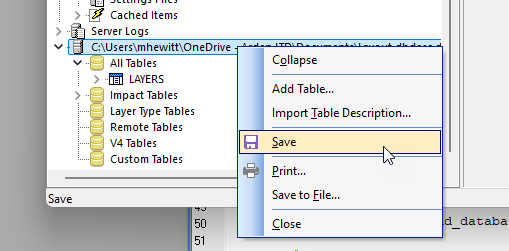
4. Save the Updated DBS File
- Save the changes to:
- The same DBS file, or
- A new copy (recommended for traceability)
5. Generate a SQL Script Instead of Applying Changes
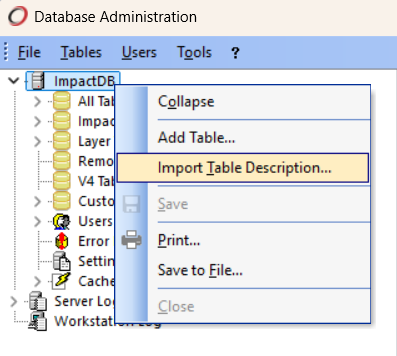
- Import the updated DBS file back into Impact.
- When prompted for Operation, choose: Script database changes to text file
- Click Continue.
- Choose a location to save the generated .sql file.
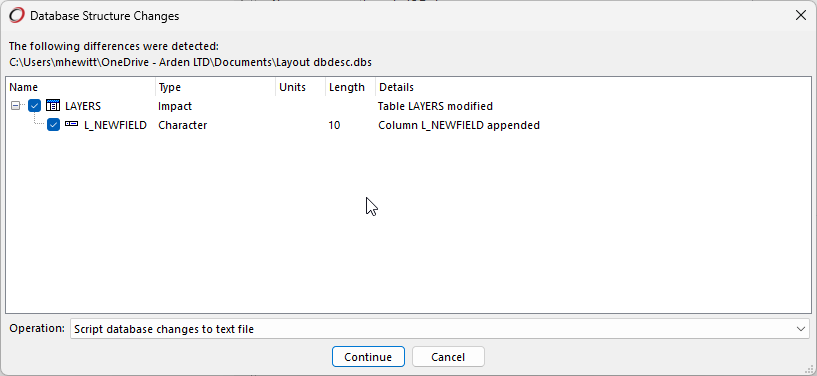
Impact will display a confirmation message indicating that the script was successfully created.
6. Run the SQL Script in SQL Server
- Exit Impact completely.
- Open SQL Server Management Studio (SSMS).
- Connect to the Impact database.
- Open the generated .sql file.
- Review the script carefully.
- Execute the script against the database - a full and recoverable database backup should have already been taken!
Warning: Do not restart Impact until the SQL script has been successfully executed.
7. Update Impact’s Data Dictionary
After the database structure has been updated, Impact’s internal data dictionary must be aligned.
- Start Impact and log in as ADMIN.
- If prompted, skip the Database Integrity Check for this login.
- Navigate to Database > Administration.
- Choose Tables > Import > Table Description.
- Select the updated DBS file.
- When prompted for Operation, choose: Apply changes to data dictionary
- Click Continue.
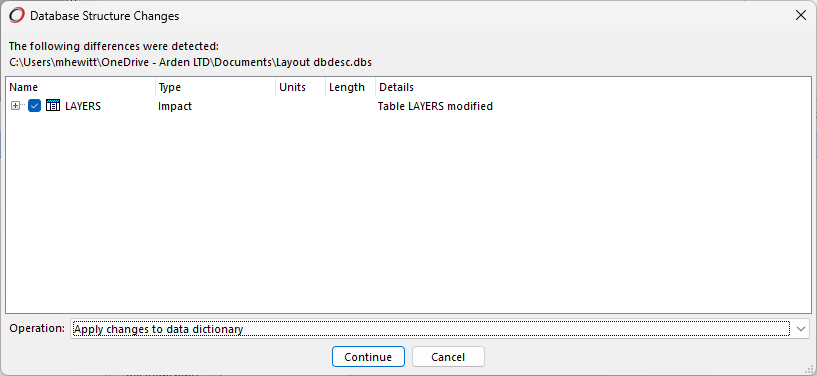
This process is usually very quick.
8. Verify the Changes
- Once complete, run a Database Integrity Check from Database Administration.
- Confirm:
- The new fields exist in SQL Server
- The fields are visible and usable within Impact