
Overview
Clearing the BLOB settings cache forces Impact CAD to delete the locally cached user settings for a specific database connection and reload them from the copies stored as BLOBs in the Impact database.
This is typically used as a troubleshooting step when support suspects the workstation’s cached settings for a connection may be corrupted, or after a setting has been fixed in the database and you want to ensure the workstation reloads a clean copy.
Prerequisites
- You must be able to open the Connect dialog in Impact CAD.
- You must know which Database: connection you are connecting to.
Steps
- In Impact CAD, open the Connect dialog.
- In the Database: list, select the database connection you want to connect to.
- Hold down Ctrl + Shift on your keyboard.
- While still holding Ctrl + Shift, click Connect.
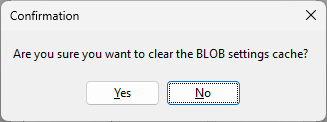
- When prompted “Are you sure you want to clear the BLOB settings cache?”, click:
- Yes to clear the cache and continue connecting, or
- No to connect without clearing the cache.
Result
- If you clicked Yes, Impact CAD clears (deletes) the local BLOB settings cache for the selected Database connection only on this workstation.
- Impact CAD then streams the settings again from the database and continues the connection.
- No backup is required as part of this step.