
This part of the Visibility page lists the Constrain and Fixed Dimension icon types that can be switched on or off, group by category.
You can use a combination or Ctrl or Shft and click to alter the selection, as well as use the context menu for advanced selection controls.
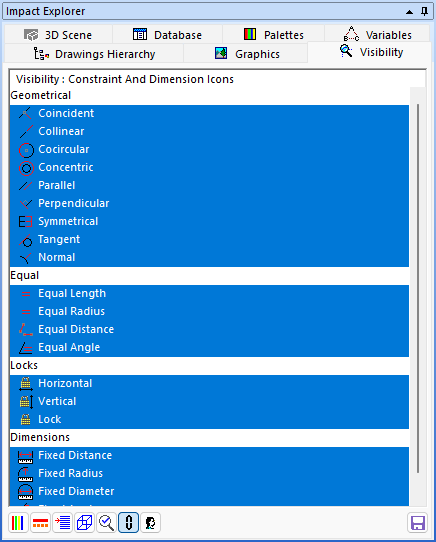
Impact Explorer - Visibility - Constraint and Dimension Icons
The right click context menu gives the following options:-
- Select All
- Select None
- Toggle Selection
- Select by Regular Expression - Enter a regular expression with which to match the block and symbol names
- Explorer Pages - Switch to one of the other pages
Related articles: Impact Explorer
Feature Change History
The following changes have been made to this feature.
| History of Change | Version |
|---|---|
| Feature added | 2026 |