
This form is opened from the Design Similarity tool.
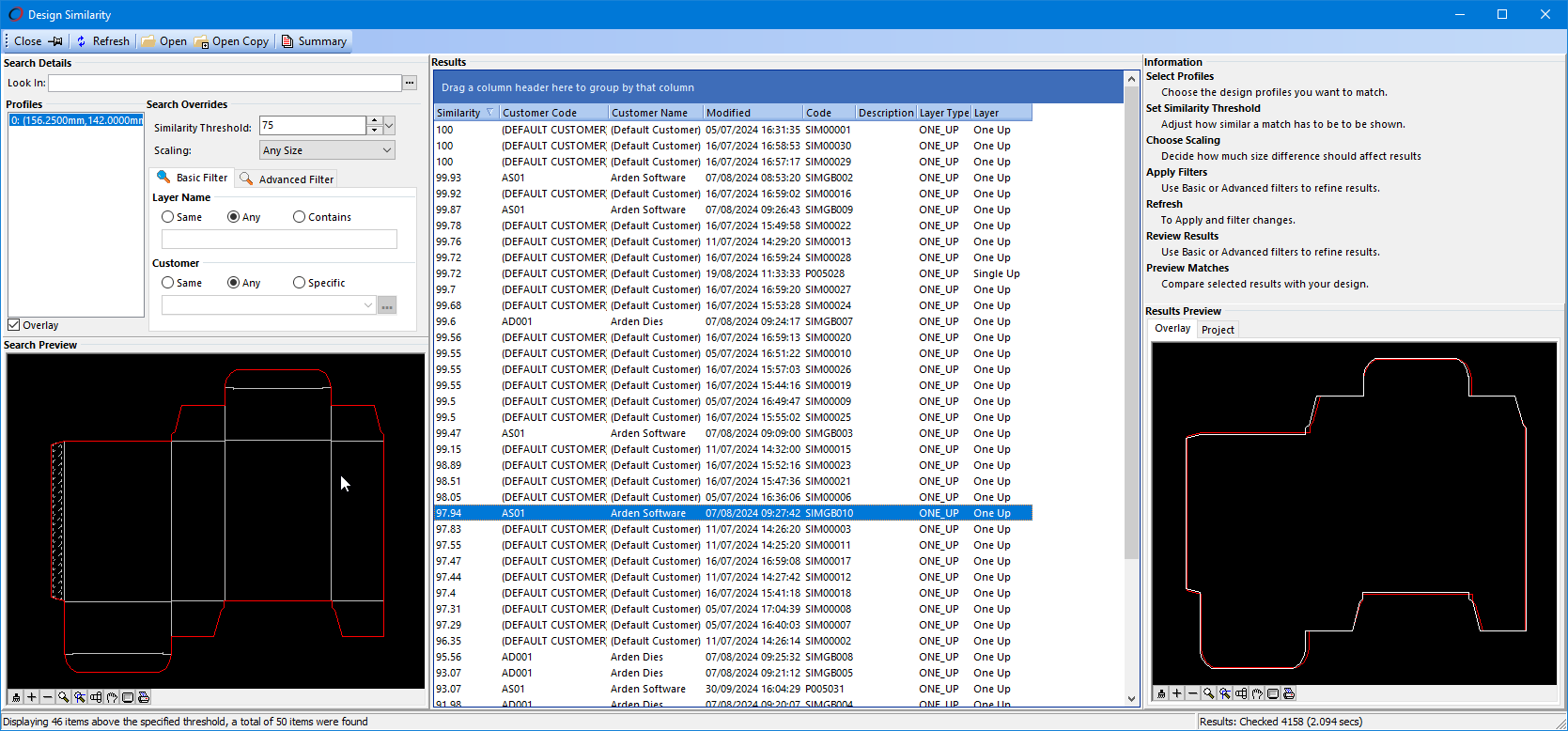
Design Similarity
Tool Bar Controls
Close - Close the form
Pin - when opening a project, or copy of a project, optionally keep the Design Similarity form pinned open
Refresh - This tool becomes available after changing one of the parameters. The search is repeated using the new parameters.
Open - Open the project for the currently selected result
Open Copy - Open a copy of the project for the currently selected result
Summary - Displays a summary of the similar layers returned
Search Details
This shows which databases you are searching. Click the edit button  to open the Select Folder(s) form, where you can specify which folders within which connected databases you want to search.
Profiles
This lists each of the profiles identified in the current layer, together with their extents. Select the profile you are interested in, and it will be displayed in the Search Preview below. This will also cause the list of Results to be updated, reflecting the selected profile.
Overlay
When this option is switched on, the whole layer will be displayed in the Search Preview. With it switched off, just the current profile will be displayed.
Search Preview
The current profile, as described above, is displayed here.
Search Overrides
Similarity Threshold
Enter a value between 1 and 100, where 1 is a very vague match, whereas 100 is an exact match.
Scaling
Choose from the following:
- Any Size
- Loose Fit
- Medium Fit
- Tight Fit
- Original Size
This defines how the scaling should match between the current profile and the one in the database.
Basic Filter
Layer Name
Choose from the following:
- Same
- Any
- Contains - In this case, enter a string to match the layer name
Customer Name
Choose from the following:
- Same
- Any
- Specific - In this case, choose a customer from the selection list
Advanced Filter
Query
From the drop-down list, choose an existing query. These are defined in the Master Tool Settings.
Adjust My Query
Use this button to open the Advanced Find form.
Results
This area of the form displays the matching layers returned by the current search. You can sort the list using any of the columns displayed. You can also group by column, by dragging the column header to the area at the top of the table.
When you select one of the rows the Results Preview will be updated accordingly.
Information
This area of the form gives instructions about how to use the tool.
Results Preview
The matching layer is displayed in this area.
Overlay - this tab displays a selected result's profile overlaying the reference profile
Project - this tab displays the complete design layer of a selected result
Feature Change History
The following changes have been made to this feature.
| History of Change | Version |
|---|---|
| This is a new tool | 2026 |